
Using a VPN on a MacBook in Russia can help improve online privacy, secure public Wi-Fi connections, and access global websites and services. A reliable free VPN for MacBook should offer strong encryption, stable speeds, and macOS compatibility without making setup complicated for beginners.
Popular VPN providers such as Proton VPN, Windscribe, and hide.me provide free plans that work on macOS devices, including MacBook Air and MacBook Pro. These VPNs usually include features like no-log policies, secure browsing, and limited free server access.
Before choosing a free VPN, users should compare speed limits, data allowances, and server locations. Some free VPNs may restrict streaming, gaming, or torrenting features, while premium plans unlock faster connections and additional security tools.
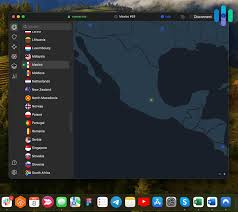
Installing a VPN on a MacBook is simple:
- Visit the official VPN website.
- Download the macOS application.
- Sign in or create a free account.
- Connect to a server location.
For better security, always download VPN apps from official sources and keep macOS updated. A trusted VPN can help MacBook users browse more safely while traveling, working remotely, or using public internet connections in Russia.
Free VPN for MacBook in Russia 2026. If you’re in Russia and trying to use a VPN on your MacBook, you already know the situation is more complicated than just downloading an app and hitting connect. Many VPN apps that work fine everywhere else get blocked, slow down to unusable speeds, or stop working without warning. And finding a free one that actually holds up — without selling your data or throttling you into frustration — takes some digging.
This guide cuts through the noise. It covers which free VPNs work on MacBook in Russia right now, how to set them up, what the limitations are, and what to watch out for.
Why VPNs Are a Bigger Deal in Russia
Russia has one of the more aggressive internet filtering systems in the world. Roskomnadzor — the country’s federal communications regulator — maintains a blocklist that includes thousands of websites and services. Social media platforms, news outlets, messaging apps, and many international services have faced blocks at various points.
On top of that, Russia has pushed through laws requiring VPN providers to register with the government and block the same sites that are blocked domestically. Most reputable VPN companies have refused to comply, which means they’ve been blocked in return. That’s the core problem: finding a VPN that still works despite being on the blocklist.
For MacBook users specifically, this means you need a VPN with obfuscation technology — a feature that disguises your VPN traffic to look like normal web browsing. Without it, even if you install a VPN, your connection can be detected and throttled or dropped.
What to Look for in a Free VPN for MacBook in Russia
Before jumping into specific options, here’s what actually matters when you’re choosing a free VPN to use in Russia:
Obfuscation/stealth mode. This is non-negotiable in Russia. The VPN needs to be able to disguise its traffic so it doesn’t get flagged by deep packet inspection (DPI), which Russian ISPs use.
A working macOS app. Some VPNs have great mobile apps but a neglected desktop experience. Since you’re on a MacBook, you want something that’s been properly built and maintained for macOS — not a clunky workaround.
No data logging. Free VPNs have a mixed record here. Some sell browsing data to third parties as their business model. Always check the privacy policy before trusting a service with your traffic.
Reliable speed. Free plans always have speed limitations, but there’s a difference between “a bit slower” and “unusable for anything beyond basic browsing.”
Enough data. Most free VPNs cap your monthly data. For casual browsing and checking blocked news sites, 10GB a month is workable. For streaming or downloading, it won’t last long.
Free VPN for MacBook in Russia 2026: Free VPNs That Work on MacBook in Russia
1. Proton VPN Free
Proton VPN is consistently the strongest recommendation for users in restricted countries, and for good reason.
The free plan has no data cap — which is rare and significant. You get unlimited bandwidth, just at reduced speeds compared to paid users. The macOS app is well-designed and stable, and Proton has a genuine privacy-first reputation (the company is based in Switzerland and also runs ProtonMail).
For Russia specifically, Proton VPN has a Stealth protocol that obfuscates traffic to bypass deep packet inspection. This makes it one of the few free VPNs that actually addresses the core technical challenge of using a VPN in Russia.
The main limitation: free users are restricted to servers in three countries (the US, the Netherlands, and Romania) and can only connect one device at a time. Speeds can drop during peak hours since free users share server capacity with paid subscribers.
Practical example: If you want to access a news site that’s blocked in Russia, connect to the Netherlands server with the Stealth protocol enabled. Navigation is smooth, pages load within a few seconds, and the connection stays stable for extended sessions.
2. Windscribe Free
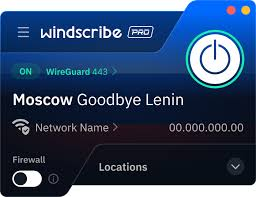
Windscribe offers 10GB of free data per month (and you can get an extra 5GB by confirming your email, bringing it to 15GB). The macOS app is clean and works well, and the free plan includes servers in over 10 countries.
The reason Windscribe earns a spot here is Windflix and its ROBERT feature — a customizable blocklist that also acts as an ad and tracker blocker. It adds a layer of privacy on top of the VPN itself.
For Russia, Windscribe’s Steez and WStunnel protocols help with obfuscation. These aren’t as seamless to enable as Proton’s Stealth button, but they work if you configure them through the app settings.
15GB a month is enough for reading articles, occasional video calls, and general browsing. If you’re primarily trying to access blocked news or social media, it’ll stretch reasonably far.
3. Psiphon
Psiphon isn’t a traditional VPN — it uses a combination of VPN, SSH, and HTTP proxy technologies specifically designed for users in censored environments. It was originally developed with funding from the US State Department and has been used widely in Iran, China, and Russia.

The macOS version is available as a direct download from the Psiphon website (psiphon3.com). It doesn’t require an account and doesn’t log usage data tied to you personally.
Speed can be inconsistent — Psiphon routes traffic through its network in ways that can vary depending on server load — but it’s remarkably good at getting through blocks. If another VPN stops working, Psiphon is often the fallback that still connects.
Data is technically unlimited on Psiphon, but heavy usage can slow the connection significantly. It’s best for browsing and lighter tasks rather than video streaming.
4. Lantern
A lantern is another tool designed specifically for censorship circumvention rather than general VPN use. It’s been used extensively in China and works on similar principles that make it effective in Russia.
The free version has a monthly data limit (around 500MB per month in the basic free tier, which is low), but it’s worth mentioning because of how reliably it punches through blocks. The macOS app is lightweight and unobtrusive.
For heavy use, Lantern’s free tier runs out fast. But if you’re specifically trying to get access to one blocked service and nothing else is working, it’s a useful tool to have installed.
5. Tor Browser (as a supplement)
Tor isn’t a VPN, but it deserves a mention here because it’s free, has no data limits, and is specifically hardened against censorship. The Tor Browser for macOS includes built-in bridge modes (Obfs4, Snowflake) that are designed to work in countries where Tor itself is blocked.
Russia has tried to block Tor, but the bridge configurations have continued to work for most users. The trade-off is speed — Tor routes your traffic through multiple relays, making it noticeably slower than a VPN. It’s not suitable for streaming or anything time-sensitive, but for reading blocked websites or communicating privately, it’s solid.
Tor Browser is a free and open-source web browser designed to protect user privacy and anonymity online. It works by routing internet traffic through the Tor network, which hides a user’s IP address and makes online activity more difficult to track. The browser is based on Mozilla Firefox and includes built-in privacy protections such as tracker blocking, anti-fingerprinting technology, and encrypted connections.
Many people use Tor Browser to access websites privately, bypass censorship, and improve online security on public Wi-Fi networks. It is widely used by journalists, researchers, activists, and privacy-conscious users around the world. Tor Browser is available for Windows, macOS, Linux, and Android devices.
The browser also allows access to “.onion” websites that are only available through the Tor network. While Tor improves privacy, browsing speeds can sometimes be slower because traffic passes through multiple secure relay servers. Users are advised to download the browser only from the official website to avoid fake or modified versions.
Setting Up a VPN on MacBook: Quick Steps (Using Proton VPN as an Example)
- Go to protonvpn.com and create a free account.
- Download the macOS app from the website (not just the App Store — the website version sometimes has the latest protocol updates first).
- Open the app and sign in.
- Before connecting, go to Settings → Connection and set the protocol to Stealth.
- From the server list, choose a free server — the Netherlands or the US tend to perform well.
- Hit Connect.
The whole process takes about five minutes. Once you’re connected, verify it’s working by visiting a site that’s blocked in Russia — if it loads, you’re good.
Pros and Cons of Using a Free VPN on a MacBook in Russia
Pros
No cost. The obvious one. You can get meaningful protection and access without paying anything, which matters if you’re testing options or only need occasional access.
Access to blocked content. A working VPN with obfuscation restores access to sites and services that are otherwise unavailable — social media, international news, and certain messaging services.
Privacy from local ISPs. Even beyond bypassing blocks, a VPN encrypts your traffic so your internet provider can’t see what sites you’re visiting.
macOS-friendly apps. Tools like Proton VPN and Windscribe have genuinely polished Mac apps that work smoothly with macOS privacy settings.
No technical knowledge required. Connecting through a modern VPN app requires nothing more than downloading and clicking connect, even with obfuscation enabled.
Cons
Data caps. Most free VPNs limit how much you can use per month. 10–15GB covers light use, but streaming or large downloads will exhaust it quickly.
Slower speeds. Free users are deprioritized on shared servers. During busy periods, speeds can drop significantly — fine for browsing, frustrating for video.
Limited server choices. Free plans typically give you access to a handful of server locations. You can’t always choose the fastest or closest option.
Some free VPNs aren’t safe. There are VPN apps — particularly lesser-known ones — that log and sell your data, inject ads, or contain malware. Sticking to well-known providers with published privacy policies is important.
Reliability isn’t guaranteed. Even good free VPNs can have periods where connections drop, or specific servers get blocked. Russia blocks infrastructure updates regularly, which means VPN providers have to keep up.
Not suitable for high-stakes privacy needs. If you’re a journalist, activist, or someone whose internet activity could have serious legal consequences, a free VPN isn’t enough. You’d need a paid provider with a verified no-logs policy, ideally combined with Tor.
A Few Things to Avoid
Avoid free VPNs with no verifiable privacy policy. If you can’t find a clear, published privacy policy with information about logging practices, don’t install it.
Avoid VPNs that require you to install a root certificate. Some apps ask for this during setup, which gives them the ability to intercept all your traffic — the opposite of what you want.
Avoid browser extensions marketed as “free VPNs.” These typically only protect your browser traffic and often log everything that passes through them. They’re not real VPNs.
Avoid overly aggressive free apps with lots of ads. Monetization through ads isn’t inherently bad, but some free VPN apps serve intrusive ads or redirect your browser traffic — both of which are red flags.
FAQs
Is it legal to use a VPN in Russia?
VPNs aren’t outright illegal for regular users in Russia, but VPN providers are required by law to register with Roskomnadzor and block certain sites. Most reputable VPN companies haven’t complied, so they’re technically operating in a legal grey area. For individual users, enforcement against personal VPN use has not been a widespread issue, but the legal landscape can shift. It’s worth being aware of the current regulations.
Will a free VPN work reliably in Russia?
It depends on the provider and the protocol. Free VPNs without obfuscation often get blocked. Proton VPN’s Stealth protocol and Psiphon’s censorship-bypass architecture are more likely to stay functional than generic free VPN apps.
Can I use a free VPN for streaming on my MacBook in Russia?
Short answer: not comfortably. Free plans typically don’t have the speed or data allowance for sustained video streaming. Proton VPN Free is the exception in terms of unlimited data, but speeds on free servers are enough for SD video at best. For regular streaming, a paid plan is more practical.
Why does my VPN keep disconnecting in Russia?
This is often a sign that the VPN protocol you’re using is being detected and disrupted. Switch to an obfuscated protocol (Stealth on Proton VPN, or WStunnel on Windscribe) and see if the connection stabilizes. Also, try changing the server you’re connecting to.
Do I need a VPN if I already use Tor?
Not necessarily for the same purposes. Tor provides anonymity and censorship circumvention, but it’s slow and not suitable for all tasks. A VPN is faster and more practical for everyday use. Using both together (VPN over Tor or Tor over VPN) is possible but adds complexity and isn’t required for most people.
What’s the best free VPN specifically for a MacBook in Russia?
Proton VPN Free is the strongest overall pick — unlimited data, a proper macOS app, and a Stealth protocol built for censorship circumvention. Windscribe is a good second option for users who want more server variety within the free tier. Psiphon is the best backup when other options aren’t connecting.
Will using a VPN slow down my MacBook?
The VPN itself uses a small amount of CPU, but on a modern MacBook, it’s not noticeable. The slowdown you’ll experience comes from the VPN server speed, not the hardware. Free server speeds vary; on a good day with Proton VPN, you can expect 20–40 Mbps on a free server, which is more than enough for browsing and standard-quality video calls.
Conclsion
Using a free VPN on a MacBook in Russia is absolutely doable — but it requires choosing the right tool and understanding the limitations. For most people’s daily needs — accessing blocked sites, using social media, reading international news — a combination of Proton VPN Free for everyday use and Psiphon as a backup covers the bases without spending anything.
The most important thing is enabling obfuscation. A VPN without it will likely struggle in Russia’s network environment. Once you have that set up correctly, the experience is surprisingly smooth for a free service.
If your needs grow — more devices, faster speeds, or streaming — moving to a paid plan eventually makes sense. But as a starting point, the free options covered here are legitimate, safe, and functional.

