
Google has entered the AI video editing space in a major way with powerful tools like Google Vids, Google Flow, and the advanced Veo 3.1 platform. In 2026, these AI-powered tools are changing how creators, businesses, YouTubers, and marketers produce videos. Instead of spending hours editing clips manually, users can now generate, edit, animate, and enhance videos using simple text prompts and AI automation. Google’s AI ecosystem combines video generation, smart editing, voiceovers, music creation, and cinematic effects into one streamlined workflow.
The latest version of Google’s video AI technology allows users to create high-quality videos from text, images, or existing footage. Features like automatic scene creation, AI avatars, background editing, character consistency, and native audio generation make the editing process faster and more professional. Google Flow is especially popular among content creators because it integrates AI video generation, image editing, and storytelling tools into a single creative workspace.
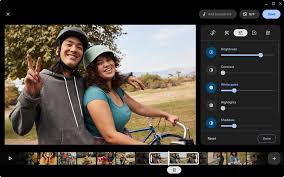
Google Video Editing AI Tool 2026. Another major innovation is Gemini Omni, introduced at Google I/O 2026. This AI model enables conversational video editing, where users simply describe changes in natural language and the AI updates the video automatically. The technology supports vertical videos for Shorts and social media, realistic animations, and 4K video output.
For businesses and professionals, Google Vids offers AI-powered storyboards, customizable avatars, screen recording, and direct YouTube publishing. It helps teams create presentations, marketing videos, tutorials, and social media content quickly without advanced editing skills.
As AI video editing continues to grow in 2026, Google’s tools are becoming strong competitors to platforms like Adobe Premiere Pro
are”], CapCut, and Runway. With faster workflows, smart automation, and high-quality AI video generation, Google’s AI video editing tools are shaping the future of digital content creation.
If you’ve been searching for a way to edit videos without spending hours in front of a timeline, Google has been quietly building something worth paying attention to. In 2026, Google’s video editing tools have grown into a proper suite — and whether you’re making content for YouTube, short clips for social media, or professional presentations, there’s likely something here that fits your workflow.
This guide covers what’s actually available, how it works in practice, what’s good about it, what falls short, and whether it’s worth your time.
What Is Google’s Video Editing Tool in 2026?
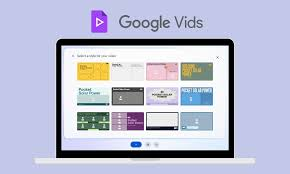
Google’s video editing capabilities are spread across a few products. Still, the most talked-about in 2026 is Google Vids — a tool built into Google Workspace that lets you create and edit videos directly from your browser. Think of it as Google Docs, but for video.
Alongside Vids, Google has also expanded editing features inside YouTube Studio, with smarter trimming, auto-dubbing, and chapter generation baked right in. And tools like Google Lens and NotebookLM continue to blur the lines between research and content production.
But the core product that most people mean when they say “Google’s video editing tool” is Google Vids, so that’s where most of this article will focus.
Google Video Editing AI Tool 2026:-How Google Vids Works
Google Vids lives inside your Google Workspace account — the same place as Docs, Sheets, and Slides. You don’t need to download anything or sign up for a separate service. If you have a Workspace account, you likely already have access.
Here’s how a typical workflow looks:
Step 1 — Start with a brief or a prompt. You can describe what your video should be about, and Google Vids will build a rough structure for you — slides, suggested scenes, and placeholder text. It’s similar to how Slides lets you generate a deck outline.
Step 2 — Build your scenes. Each “scene” in Vids is like a slide that plays for a set duration. You add video clips, screen recordings, text overlays, stock footage, and voiceovers. Everything is drag and drop.
Step 3 — Record narration or use a generated voice. You can record yourself directly in the browser, or use one of Google’s narrator voices if you don’t want to appear on camera.
Step 4 — Share and publish. The final video can be shared as a link (like any Google Doc), downloaded as an MP4, or published directly to YouTube if your accounts are linked.
That’s it. The whole process happens in Chrome, with no rendering delays and no software to install.
What It’s Actually Good For
Let’s be specific here, because Google Vids is not a replacement for Adobe Premiere or DaVinci Resolve. It’s built for a different kind of video.
Internal business communication. Say you need to walk your team through a quarterly update, a new onboarding process, or a product demo. Google Vids is genuinely fast for this. You record your screen, drop in some slides, record a voiceover, and it’s done. A video that would take two hours in another tool takes thirty minutes here.
Educational content. Teachers and trainers who already live in Google Workspace will find Vids fits naturally into their setup. You can pull content from Docs, reference data from Sheets, and publish directly to Classroom.
Social media short-form content. With the built-in stock library (powered by Getty Images through Workspace), you can build a clean 60-second explainer video without needing to source footage from anywhere else.
YouTube channel intros and tutorials. The screen recording feature is smooth, and the auto-chapter tool in YouTube Studio (which now works well with Vids exports) makes tutorial videos more navigable.
What’s New in 2026
Google has shipped some genuinely useful updates over the past year.
Auto-dubbing in multiple languages. This was first rolled out on YouTube Studio for creators with large channels, but in 2026, it has become more widely available. You can take an English video and get a dubbed version in Spanish, Portuguese, Hindi, or several other languages — with lip-sync approximation that’s noticeably better than earlier attempts.
Smart trimming in YouTube Studio. Instead of manually cutting out the part where you paused to cough or check your notes, YouTube Studio now flags those moments automatically and lets you approve or reject each cut in a few clicks.
Background replacement in Google Meet recordings. If you’re recording a meeting in Google Meet and want to clean up the background in post, there’s now a basic scene replacement feature available in the Vids editor when you import Meet recordings.
Improved voiceover quality. The generated narrator voices in Vids sound noticeably more natural than they did in 2024. There’s still a ceiling — they don’t match a real human voice for warmth — but for internal videos or tutorials, they’re more than acceptable now.
Pros and Cons of Google’s Video Editing Tool
Pros
Zero installation required. Everything runs in the browser. You don’t need a powerful machine, and there’s no software to update or manage.
Deep Google Workspace integration. If your team lives in Docs, Drive, and Slides, Vids fits right in. You can pull content from other Google apps without any export-import friction.
Real-time collaboration. Just like Google Docs, multiple people can work on a Vids project at the same time. This is rare in video editing and genuinely useful for teams.
Fast for simple, structured video. For anything that follows a predictable format — tutorials, walkthroughs, internal updates — Vids is faster than most alternatives.
Decent free stock footage. The Getty integration means you’re not stuck with low-quality Creative Commons clips. The selection is solid for most business use cases.
Auto-captioning. Captions are generated automatically and are editable. They’re not perfect, but the accuracy is good enough to make minor corrections faster than writing from scratch.
Cons
Not built for complex editing. If you need multi-track audio, color grading, motion graphics, or anything beyond basic cuts and transitions, Google Vids will feel limiting quickly.
Requires a Workspace subscription for full access. The core features are available to paying Workspace users. Free Google account holders have access to a stripped-down version.
Limited export options. You can download an MP4 or share a link, but there’s no support for formats like ProRes or MOV. For most people, that’s fine; for professional video work, it’s a blocker.
Narrator voices still sound synthetic. For customer-facing videos or anything with a personal tone, the generated voices don’t quite land. You’ll want to record your own audio.
No offline editing. Everything is browser-based, which means you need a stable internet connection. This catches people off guard if they’re trying to work on a plane or in a location with unreliable Wi-Fi.
Template variety is limited. The available templates cover common use cases well, but if you want something with a distinct visual style, you’ll spend time customizing — or wish you had more starting points.
How It Compares to Other Options
It’s worth knowing where Google Vids sits relative to other tools you might already be using.
vs. Canva Video — Canva has a more polished design library and a wider range of templates. If visual branding matters a lot to you, Canva edges ahead. But it doesn’t have the Workspace integration or the real-time collaboration depth.
vs. Clipchamp (Microsoft) — If you’re in a Microsoft environment, Clipchamp is the equivalent. Both are browser-based, both are fast, and both have similar limitations. Google Vids has better collaboration; Clipchamp has a more flexible timeline editor.
vs. CapCut — CapCut is far better for social-first, trend-led content — especially short-form vertical video. But it’s a separate app, not embedded in a productivity suite, which makes it the wrong tool for teams working on business content.
vs. DaVinci Resolve / Premiere — No real comparison for professional work. Those are full editing suites with a learning curve; Vids is a lightweight browser tool. They’re for different jobs.
Who Should Use It
Google Vids makes the most sense for:
- Teams already using Google Workspace who want to add video to their communication without adopting a new tool.
- Educators and trainers need to build structured lessons or onboarding content.
- Content creators who need to publish quickly and don’t need heavy post-production.
- Small businesses making product demos, customer explainers, or internal training videos.
It’s less suited for:
- YouTubers who do heavy editing, b-roll work, or complex audio mixing.
- Marketing teams with strong brand design requirements.
- Anyone working with high-resolution or RAW video files.
FAQs
Is Google Vids free?
A limited version is available to anyone with a free Google account, but full features — including the stock footage library, advanced narrator voices, and more storage — require a Google Workspace subscription. Workspace plans start around $6/user/month for the basic tier.
Can I use Google Vids on mobile?
As of mid-2026, Google Vids is primarily a desktop browser experience. You can view and share Vids projects on mobile, but the editing interface isn’t optimized for touchscreen use yet. YouTube Studio’s mobile app does offer trimming and caption editing on the go.
Does Google Vids support vertical video for Instagram or TikTok?
It supports 9:16 (vertical) aspect ratios, so you can create content formatted for Reels or Shorts. The export quality is adequate, though the template library skews toward horizontal formats.
How long can a Google Vids video be?
There’s no hard cap published as of 2026, but performance slows noticeably with videos over 20–25 minutes. For longer content, you’re better off editing in a dedicated tool and using YouTube Studio for final adjustments.
Is the auto-dubbing feature available to everyone?
Auto-dubbing in YouTube Studio has broader availability in 2026 than before, but it’s still rolling out and is not available in all regions or for all account types. Check your YouTube Studio settings under the “Dubbing” tab to see if your channel qualifies.
Can I import existing video files into Google Vids?
Yes. You can upload MP4 files from your computer or pull from Google Drive. The tool handles most common formats well. Very large files (over 4GB) may take time to process.
What languages are supported for captions and dubbing?
Caption generation supports over 17 languages, including English, Spanish, French, German, Japanese, Hindi, and Portuguese. Dubbing availability varies and currently supports a smaller set of languages — primarily English, Spanish, Portuguese, and French, with more being added.
Conclsion
Google’s video editing tools in 2026 have reached a point where they’re genuinely useful — not just for tinkering, but for real work. If you’re already in Google Workspace and you’ve been putting off adding video to your communication or content strategy because it seemed complicated, Google Vids removes most of that friction.
It won’t replace your dedicated editing software if you already have one and rely on it. But for the large portion of people who just need to make clear, professional-looking videos without a steep learning curve, it’s one of the more practical options available right now — and it keeps getting better.

