
Free VPN for MacBook Download:-
If you use your MacBook on public Wi-Fi — at a café, airport, or library — your connection is more exposed than you might think. Anyone on the same network can potentially see what you are browsing. A VPN fixes that by encrypting your traffic and masking your IP address.
The good news is that you do not need to pay for this protection. Several free VPNs work well on macOS and are straightforward to download and set up. The bad news is that not every free VPN is worth installing — some are slow, some log your data, and some are just not trustworthy.
This guide covers the best free VPNs you can actually download on your MacBook, how to install them, what to expect, and what to avoid.
A “Free VPN for MacBook” helps users protect their internet privacy, secure public Wi-Fi connections, and access restricted websites without paying for a subscription. VPN services encrypt internet traffic, hide IP addresses, and improve online security while browsing on macOS devices such as the MacBook Air and MacBook Pro. Many free VPN applications offer features like secure browsing, DNS leak protection, and access to servers in multiple countries.
Popular options include Proton VPN, Windscribe, and TunnelBear, which are known for user-friendly macOS apps and strong privacy features. Free VPNs are useful for basic browsing, streaming, and protecting data on public networks, but they may include limitations such as slower speeds, data caps, or fewer server locations compared to premium plans.
In 2026, free VPN services remain popular among MacBook users who want affordable online privacy and secure internet access without complicated setup processes.
Why MacBook Users Need a VPN
MacBooks are popular targets simply because they are common and expensive, which often means the people using them have data worth protecting. Beyond that, macOS does not come with built-in VPN protection for general browsing. It supports VPN configurations, but you need a service to connect to.
Here are the most common situations where a VPN helps:
Public Wi-Fi — Coffee shops, hotels, and airports run open networks. Without a VPN, your login details, emails, and browsing activity can be visible to others on the same network.
Accessing content from another region — Some streaming platforms and websites serve different content depending on where you are. A VPN lets you connect through a server in another country.
General privacy — Your internet service provider can see every website you visit. A VPN prevents that by encrypting your traffic before it even leaves your MacBook.
Work or study networks — If your school or workplace blocks certain websites, a VPN can route around those restrictions.
What to Look for in a Free VPN for MacBook
Before downloading anything, keep these criteria in mind:
- macOS compatibility — Not every VPN has a proper Mac app. Look for one with a dedicated macOS client, not just a browser extension.
- No-log policy — A trustworthy free VPN should not store records of what you do online.
- Data limits — Most free plans cap how much data you can use per month. Know the limit before you rely on it.
- Server locations — More server locations mean more flexibility, especially if you need to access region-specific content.
- Speed — Free servers tend to be more crowded. Look for services that are transparent about their free-tier performance.
- Download process — Download only from the official website or the Mac App Store to avoid fake versions.
Best Free VPNs for MacBook — Detailed Breakdown
1. ProtonVPN — Best Overall Free Option
ProtonVPN is the most recommended free VPN for MacBook, and for good reason. It is one of the very few free VPNs with no data cap. Most free VPNs cap you at 500 MB or 1GB per month. ProtonVPN lets you use as much data as you want on the free plan.

The free tier gives you access to servers in three countries — the United States, the Netherlands, and Japan. Speeds are decent, though you will notice the difference compared to paid tiers during peak hours.
ProtonVPN is based in Switzerland, which has strong privacy laws. It has a verified no-log policy and is open-source, meaning its code has been independently audited.
How to download: Go to protonvpn.com, click Download, select macOS, and install the app. Sign up for a free account during setup.
Best for: Everyday browsing, privacy-focused users, people who need unlimited data.
2. Windscribe — Best for Data Allowance and Server Variety
Windscribe gives free users 10GB of data per month — one of the most generous limits among free VPNs. If you confirm your email during sign-up, you get the full 10GB. Without email confirmation, you only get 2GB.
The free plan includes servers in 10 countries, offering more variety than most free VPNs. It also includes a built-in ad and tracker blocker, which is a useful bonus.

Windscribe has a clean macOS app and is straightforward to install. Speed is solid on nearby servers but can drop on distant ones.
How to download: Visit windscribe.com, create a free account, and download the Mac app from the website.
Best for: Users who need a monthly data allowance for moderate use, browsing, and light streaming.
3. Hotspot Shield — Best for Speed
Hotspot Shield has one of the fastest free tiers available. Its proprietary Hydra protocol is optimised for speed, which makes it stand out compared to most free VPN options that throttle connections.
The free plan limits you to 500MB per day (roughly 15GB per month if used every day) and one server location — usually the nearest one to you. You cannot choose your server on the free plan.

It has a dedicated macOS app and is easy to install. The interface is simple and works well for beginners.
How to download: Go to hotspotshield.com and download the macOS app. You can use it without an account, though creating one gives you slightly more control.
Best for: Users who prioritise speed and do not need to choose their server location.
4. TunnelBear — Best for Beginners
TunnelBear is one of the most beginner-friendly VPNs available. The app is well-designed, easy to navigate, and works reliably on macOS. Setup takes about two minutes.
The free plan gives you 500MB per month, which is low. However, TunnelBear runs occasional promotions where you can earn extra data by tweeting about them or following them on social media. This can bump you up to 1.5GB or more.
TunnelBear has been independently audited for security, which adds credibility. It is not the best choice if you need heavy usage, but for occasional connections — checking email on public Wi-Fi, for example — it works well.
How to download: Visit tunnelbear.com, sign up for a free account, and download the macOS app.
Best for: Beginners and occasional users who need a simple, trustworthy option.
5. hide.me — Solid Mid-Range Free Option
hide.me offers 10GB of data per month on its free plan, along with five server locations. It has a no-log policy and supports multiple VPN protocols, including IKEv2 and OpenVPN, which are both solid for macOS.
The macOS app is functional, if not the most polished. Speed is consistent, and the connection is stable. One downside: the free plan limits you to one device.
Hide.me is a privacy-focused VPN service designed to provide secure and anonymous internet access for users on devices such as Windows, macOS, Android, iPhone, and Linux. It is known for offering both free and premium VPN plans with strong encryption, no-log policies, and fast browsing performance. hide.me helps users protect personal data on public Wi-Fi networks, hide their IP addresses, and access websites securely from different virtual locations around the world.
The service includes advanced security features such as split tunneling, DNS leak protection, IPv6 support, kill switch protection, and multiple VPN protocols for better speed and privacy. Its free plan is popular among users who need basic online protection without paying for a subscription, while premium plans provide unlimited bandwidth and access to a larger number of global servers. In 2026, hide.me remains a trusted VPN solution for users looking for online privacy, secure browsing, and simple cross-platform VPN protection.
How to download: Go to hide.me/en/download, select macOS, and create a free account.
Best for: Users who want a reliable free VPN with a decent data limit and protocol options.
How to Install a Free VPN on Your MacBook — Step by Step
Here is the general process, using ProtonVPN as an example:
- Go to the official website — protonvpn.com. Do not download from third-party sites.
- Create a free account — Enter your email and set a password. No payment details needed for the free plan.
- Download the macOS app — Click the download button for macOS and open the .dmg file once it downloads.
- Install the app — Drag ProtonVPN to your Applications folder when prompted.
- Open and log in — Launch ProtonVPN from your Applications folder and sign in with your account.
- Connect — Click “Quick Connect” or choose a specific server from the list. Your MacBook is now protected.
The process is nearly identical for other VPNs. Always install from the official site or Mac App Store to avoid modified or malicious versions.
Pros of Using a Free VPN on a MacBook
No cost. For basic protection and occasional use, a free VPN gets the job done without spending anything.
Easy to set up. Most free VPNs have dedicated Mac apps. Installation takes a few minutes and requires no technical knowledge.
Protects public Wi-Fi connections. This is the most practical everyday use case — encrypting your traffic when you connect to an open network.
Hides your IP address. Websites you visit will see the VPN server’s IP, not yours. This adds a layer of anonymity to your browsing.
Test before upgrading. Using the free plan is a good way to evaluate whether a VPN’s speed, interface, and server coverage are worth paying for.
Cons of Using a Free VPN on a MacBook
Data caps. Except for ProtonVPN, most free plans cap your data at 500MB to 10GB per month. That is not enough for heavy use or regular streaming.
Fewer server locations. Free plans typically give you access to 3–10 countries. Paid plans often include 50–90 countries.
Slower speeds. Free servers are shared by more users, which means congestion during peak hours. Downloads and video calls may suffer.
Limited features. Kill switches, split tunneling, and multi-hop connections are almost always locked behind paid plans.
Some free VPNs are not trustworthy. There are free VPN apps — particularly from unknown developers — that log your data and sell it to advertisers. Stick to well-known names with verified privacy policies.
One device limit. Many free plans only allow one connected device at a time.
Free VPNs to Avoid on MacBook
Not every free VPN is safe to use. Here are some red flags:
- No privacy policy or a vague one — If a VPN does not clearly state what it does with your data, assume the worst.
- Apps not from the official website or App Store — Fake VPN apps exist. Always verify the source.
- VPNs that ask for unusual permissions — A VPN should not need access to your contacts, camera, or microphone.
- Unlimited free VPNs with no clear business model — If there is no paid plan and no ads, ask yourself how they fund the service.
Avoid apps like Hola VPN (which routes your traffic through other users’ devices), and be cautious with any VPN you have not heard of before.
Practical Example: Using a Free VPN at a Coffee Shop
You are working from a café in Chennai and connecting to their open Wi-Fi. Without a VPN, anyone on that network using basic tools can potentially see which websites you visit and intercept unencrypted login attempts.
With ProtonVPN running on your MacBook:
- Open the app before connecting to the café network.
- Click Quick Connect — it picks the fastest available server.
- All traffic from your MacBook is now encrypted.
- Log in to your email, work tools, or banking site without worrying about who else is on the network.
Disconnect when you get home and reconnect to your regular network. The whole process takes about 30 seconds once the app is installed.
Free vs Paid VPN — Is Upgrading Worth It?
For most casual users, a free VPN handles the basics. But here is when a paid plan makes more sense:
- You stream video regularly and need a consistent speed and server choice.
- You travel frequently and need servers in specific countries.
- You want a kill switch (which cuts your internet if the VPN drops, preventing accidental exposure).
- You need to protect multiple devices simultaneously.
- You work with sensitive business data and need a guaranteed no-log policy backed by legal accountability.
ProtonVPN Plus, Mullvad, and ExpressVPN are well-regarded paid options if you reach that point. But starting free is a perfectly reasonable approach.
Frequently Asked Questions
Is it safe to use a free VPN on a MacBook? It depends on the VPN. The ones listed in this guide — ProtonVPN, Windscribe, TunnelBear, Hotspot Shield, and hide.me — have solid reputations and verified privacy policies. Avoid unknown free VPNs from unverified sources.
Will a free VPN slow down my MacBook’s internet? Some slowdown is normal on free plans because you are sharing server capacity with other users. For browsing and email, it is barely noticeable. For 4K streaming or large downloads, the slowdown becomes more obvious.
Can I use a free VPN to watch Netflix on my MacBook? Most free VPNs struggle with Netflix because streaming platforms actively block VPN servers. ProtonVPN occasionally works, but it is not reliable on the free tier. You will generally need a paid plan with dedicated streaming servers for consistent results.
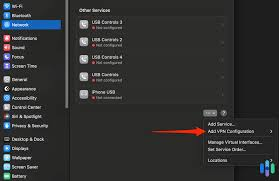
Does macOS have a built-in VPN? macOS supports VPN configurations under System Settings > VPN, but this requires you to already have a VPN service and its credentials. It does not come with a free VPN service included. The tools in this guide provide the service and the app together.
How do I know if my VPN is actually working on my MacBook? After connecting, go to whatismyipaddress.com in your browser. If it shows the location of your VPN server instead of your actual location, the VPN is working correctly.
Can I use a free VPN for torrenting on a MacBook? Most free VPNs either do not allow torrenting or throttle P2P traffic heavily. ProtonVPN’s free plan does not support P2P. Windscribe allows it on some servers, but performance is limited. For torrenting, a paid VPN is a better choice.
Is ProtonVPN really free forever? Yes. ProtonVPN’s free plan has no time limit and no data cap. The company sustains the free tier through revenue from paid subscribers. You do not need a credit card to use the free plan.
Conclsion
If you use your MacBook on public networks, work with sensitive accounts, or just want more privacy while browsing, downloading a free VPN is one of the easiest steps you can take. It costs nothing and takes a few minutes to set up.
Start with ProtonVPN if you want unlimited data and strong privacy credentials. Go with Windscribe if you want more server locations on a free plan. Use TunnelBear if you are new to VPNs and want the simplest possible experience.
Download only from official websites, check that the app is connecting before you rely on it, and review the privacy policy of any service you use. Done right, a free VPN on your MacBook gives you meaningful protection without any ongoing cost.

