
Running a YouTube channel without appearing on camera is more achievable today than it has ever been. Whether you’re shy, value your privacy, or simply want to build a content business without being the face of it, the faceless channel format works, and it scales well.
The challenge most people hit early on is production. Writing scripts, recording voiceovers, finding footage, editing videos, designing thumbnails — it’s a lot for one person. The right set of tools cuts that workload down significantly.
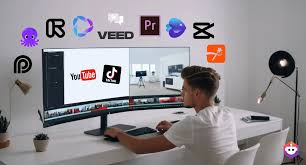
This guide covers the best tools for every part of the faceless YouTube workflow, what each one does well, where it falls short, and how to use them together in a way that actually makes sense.
Best AI tools for faceless YouTube channels in 2026. AI tools for faceless YouTube channels help creators make videos without showing their faces on camera. These tools can generate scripts, voiceovers, video clips, subtitles, thumbnails, and editing effects automatically. Many beginners use faceless content styles for niches like motivation, tech, finance, facts, tutorials, storytelling, gaming, and business case studies because they are faster to create and require less equipment.
One of the most popular tools is ChatGPT, which helps generate video ideas, titles, scripts, hooks, and descriptions. Creators use it to speed up content planning and create engaging storytelling for YouTube videos. It is especially useful for educational and business-focused channels.
For video editing and automatic content creation, Pictory is widely used. It can turn blog posts or scripts into full videos using stock footage, transitions, subtitles, and background music. This makes it ideal for faceless documentary-style or tutorial channels.
Canva is another beginner-friendly tool for creating thumbnails, YouTube banners, animations, and short videos. Many creators use Canva templates to make professional-looking visuals without design experience. It also supports text animations and simple video editing.
For voiceovers, ElevenLabs is popular because it creates realistic AI voices in multiple languages and accents. Faceless YouTubers use it to narrate stories, explain tutorials, or create motivational content without recording their own voice.
CapCut is widely used for editing YouTube Shorts and viral videos. It offers auto captions, transitions, sound effects, and easy mobile editing. Many creators use CapCut because it is free and beginner-friendly.
For cinematic or advanced videos, Runway provides powerful editing tools such as background removal, AI-generated video effects, and motion tracking. It is useful for creators who want professional-quality visuals without complex editing software.
Another useful platform is Descript, which combines video editing, audio editing, transcription, and voice cloning in one tool. It allows creators to edit videos by editing text, making the workflow much faster.
Faceless YouTube channels are growing because they can be managed from a laptop or smartphone without expensive cameras or studios. With the right AI tools, creators can produce videos faster, upload consistently, and focus more on content strategy and audience growth.
What Makes a Faceless YouTube Channel Work?
Before jumping into tools, it helps to understand what a faceless channel actually needs to succeed.
The format removes one major advantage regular YouTubers have — a personality on camera that builds a connection. To compensate, faceless channels need to be strong in other areas: tight scripts, clear audio, good pacing in the edit, and visuals that hold attention.
The channels that do this well — finance explainers, history breakdowns, motivational content, news summaries, “top 10” lists — all share the same qualities. Good writing. Clean audio. Consistent output.
The tools below are organized by what stage of production they serve.
Best AI tools for faceless YouTube channel:-
Scriptwriting and Content Planning
1. ChatGPT (Free and Paid) — Script Drafting and Ideation
For getting a first draft on paper quickly, ChatGPT is hard to beat. You can describe your video topic, specify your tone, and get a structured script outline or full draft within seconds. It’s not always perfect on the first try, but it gives you something to work with — which is often the hardest part.
Practical example: You want to make a video titled “5 Reasons Most People Never Build Wealth.” Type that into ChatGPT with a note about your channel tone — say, straightforward and practical — and ask for a 600-word script with a hook, five points, and a call to action. Edit the output to match your voice, and you’ve saved an hour of staring at a blank page.
Pros:
- Extremely fast for getting first drafts out
- Handles research summaries, outlines, hooks, and full scripts
- The free plan is useful for most tasks
Cons:
- Output needs editing — raw drafts often sound generic
- Factual errors are possible, especially on niche topics
- The free plan has usage limits during peak hours
2. Notion (Free Plan) — Content Calendar and Script Storage
Notion isn’t a writing tool in the traditional sense, but it’s where a lot of serious content creators manage their pipeline. You can build a content calendar, store scripts, track video status, and keep research notes all in one place.
Practical example: You’re running a finance channel and planning to post twice a week. Set up a Notion database with columns for topic, keyword, script status, footage status, and publish date. Every video moves through the pipeline in one view.
Pros:
- Free plan covers everything most solo creators need
- Flexible — build your workflow your way
- Great for batch planning multiple videos at once
Cons:
- Takes time to set up properly
- Can become disorganized if you don’t maintain it
- Slight learning curve for new users
Voiceover and Audio
3. ElevenLabs (Free Tier) — Voiceover Generation
ElevenLabs produces the most natural-sounding voiceovers available on a free plan. You paste your script, choose a voice, and download a clean audio file. The quality difference between ElevenLabs and cheaper text-to-speech tools is noticeable — especially on longer videos where robotic-sounding voices become grating.
Practical example: Your script for a 7-minute history video is 900 words. Paste it into ElevenLabs, pick a calm, authoritative male or female voice depending on your channel’s tone, and generate the audio. The result sounds like a professional voiceover artist recorded it in a studio.
Pros:
- Best voice quality available on a free plan
- Multiple voice styles and accents
- Fast generation
- Supports multiple languages
Cons:
- Free tier limits you to around 10,000 characters per month
- Cannot clone your own voice on the free plan
- Audio only — no video integration
4. Murf (Free Trial) — Voiceover with Studio Controls
Murf is an alternative to ElevenLabs that gives you more control over pacing, pitch, and emphasis within the script. You can highlight specific words and adjust how they’re pronounced, which helps if you want the voiceover to sound more natural on a specific line.
Practical example: Your script has a dramatic line — “Everything changed in one single day.” You want a pause before “one single day” for effect. Murf lets you insert that pause manually without re-recording anything.
Pros:
- Granular control over voice delivery
- Clean interface
- Good variety of voice styles
Cons:
- The free plan is limited — mainly a trial
- Fewer free characters than ElevenLabs
- Some voices sound slightly less natural than ElevenLabs’ best options
Video Creation and Editing
5. CapCut (Free) — Best All-Around Free Editor for Faceless Videos
CapCut handles the full editing process — trimming, transitions, captions, music, text overlays, and basic color correction — all for free. For faceless YouTube channels, the auto-caption feature alone saves hours of manual subtitle work every month.
Practical example: You’ve imported your ElevenLabs voiceover and downloaded five stock footage clips from Pexels. In CapCut, you lay the audio on the timeline, stack the footage clips above it, add animated captions using the auto-caption tool, drop in a royalty-free background track at low volume, and export. A complete 8-minute video, edited start to finish.
Pros:
- No watermark on most free exports
- The auto-caption feature is fast and accurate
- Works for both short-form and long-form content
- Frequent updates with new features
Cons:
- Some effects and templates are locked behind a paid plan
- Can feel cluttered when working on longer timelines
- The desktop version is more stable than the mobile version for complex projects
6. DaVinci Resolve (Free Version) — Best for Long-Term Quality
If you’re serious about building a faceless channel that looks genuinely professional, DaVinci Resolve is the editor to learn. The free version has no watermark, no data limits, and includes features that paid editors charge hundreds of dollars for — color grading, multi-track audio editing, and advanced transitions.
Practical example: Six months into your channel, your videos look clean but a little flat. You move to DaVinci Resolve and start color grading your footage — adding warmth to finance content, a cooler tone to tech videos. Small changes that make a real visual difference.
Pros:
- Professional-grade editing, completely free
- No watermark on exports
- Industry-standard software used in film and TV
- Handles 4K footage without issues on capable hardware
Cons:
- Steep learning curve for beginners
- Requires a powerful computer
- Overkill for simple or short-form content
7. InVideo (Free Plan) — Fastest Script-to-Video Workflow
InVideo is built around turning written content into a structured video as quickly as possible. You paste a script, select a template, and it tries to match your content to relevant stock footage automatically. It’s not perfect, but it’s the fastest way to get a rough cut together.
Practical example: You’ve written a listicle-style script: “7 Countries with the Lowest Tax Rates.” InVideo turns each point into a slide, assigns stock footage to each section, and produces a rough video in a few minutes. You then go through and replace any footage that doesn’t fit.
Pros:
- Very fast turnaround from script to rough cut
- Large stock footage library built in
- Template-driven workflow is beginner-friendly
Cons:
- Free plan adds a watermark
- Auto-footage matching is hit or miss
- Less control than a traditional editor
Thumbnails and Graphics
8. Canva (Free Plan) — Thumbnail Design
YouTube thumbnails are one of the biggest factors in click-through rate, and Canva is the most practical free tool for designing them. The free plan gives you access to hundreds of YouTube thumbnail templates, customizable fonts, and a large library of free stock images.
Practical example: Your video is titled “Why 90% of People Fail at Investing.” In Canva, you pick a bold thumbnail template, swap in your title text, change the background color to something high-contrast, and add a relevant icon or image. Done in under 10 minutes.
Pros:
- Huge template library
- Easy drag-and-drop interface
- Works in-browser, no install
- Free plan covers all the essentials
Cons:
- Some premium elements require a paid plan
- Not ideal for complex graphic design
- Templates can start to look generic if overused
Stock Footage and Music
9. Pexels and Pixabay — Free B-Roll Footage
Both platforms offer high-quality stock footage with commercial use licenses at no cost. For faceless channels, these are essential. The footage covers a wide range of topics — business, nature, technology, lifestyle, travel — and most clips are available in HD or 4K.
Practical example: Your video covers the topic of remote work. You search “laptop coffee shop,” “home office,” and “video call” on Pexels and download six clips in 4K. These become the visual layer of your video while your voiceover runs underneath.
Pros:
- Completely free, commercial use allowed
- High-quality clips, many in 4K
- No account required on Pexels
- Regular new content added
Cons:
- Search results are inconsistent for niche topics
- Popular clips get overused across many channels
- No editing tools — strictly a media library
10. Pixabay Music and YouTube Audio Library — Free Background Music
Background music sets the tone for a video without distracting from the content. Pixabay Music and YouTube’s own Audio Library both offer royalty-free tracks you can use without copyright claims.
Practical example: You need a subtle, low-energy background track for a finance video. Search “corporate background” or “calm instrumental” on Pixabay Music and download something that fits. Import it into your editor at 10–15% volume so it sits behind the voiceover without competing.
Pros:
- Completely free
- Safe for YouTube monetization
- Wide range of genres and moods
Cons:
- Quality is inconsistent — some tracks sound cheap
- Popular tracks appear in many videos across the platform
- Limited filtering options on some platforms
Channel Growth and Analytics
11. TubeBuddy (Free Plan) — Keyword Research and SEO
TubeBuddy is a browser extension that sits on top of YouTube and gives you data on keywords, tags, competition scores, and best posting times. The free plan is limited but gives you enough to make better decisions about what topics to target.
Practical example: Before making a video on “best budgeting apps,” you check TubeBuddy’s keyword explorer. It shows you the search volume is decent, but the competition is high. You adjust the title to “best budgeting apps for beginners” — lower competition, more specific audience.
Pros:
- Directly integrated into YouTube’s interface
- Useful keyword data even on the free plan
- Helps optimize titles, tags, and descriptions
Cons:
- Most advanced features require a paid plan
- Data isn’t always perfectly accurate
- Can slow down your browser slightly
A Complete Free Workflow for Faceless YouTube
Here’s how to combine these tools into one repeatable system:
- Plan content — Use Notion to organize your topic calendar and keyword targets
- Write scripts — Draft in ChatGPT, edit in Google Docs
- Generate voiceover — Paste final script into ElevenLabs, download audio
- Find footage — Download relevant B-roll from Pexels or Pixabay
- Edit video — Import audio and footage into CapCut (beginners) or DaVinci Resolve (advanced)
- Add captions — Use CapCut’s auto-caption feature
- Add music — Import a track from Pixabay Music at low volume
- Design thumbnail — Build it in Canva using a YouTube template
- Research SEO — Check your title and tags using TubeBuddy before uploading
- Upload and optimize — Write description, add chapters, publish
That’s a complete zero-to-published pipeline using tools that are either free or have a usable free tier.
FAQs
Do I need any paid tools to run a faceless YouTube channel?
No, you can run an entire channel on free tools. The workflow above costs nothing. That said, once your channel starts growing and you’re posting consistently, upgrading one or two tools (voiceover quality or editing software) can improve output noticeably.
How long does it take to produce one faceless video?
Once you know the workflow, a 7–10 minute YouTube video typically takes 3–5 hours from blank script to uploaded video. Short-form content under 60 seconds can be done in under an hour.
What niche works best for faceless YouTube channels?
Finance, history, self-improvement, technology, and news commentary are among the strongest niches for faceless content. They’re all topic-driven rather than personality-driven, which suits the format well.
Can I monetize a faceless channel?
Yes. Faceless channels monetize through YouTube’s Partner Program the same as any other channel. Many of the highest-earning YouTube channels don’t feature a person on camera at all.
Is voiceover quality important for faceless channels?
Very much so. Since there’s no face on screen, the voice carries the video. Poor audio quality or a robotic voice will push viewers away quickly. ElevenLabs is the best free option for natural-sounding voiceovers.
How many videos do I need before seeing growth?
Most faceless channels start seeing meaningful growth between 30 and 50 videos, assuming good keyword targeting and consistent posting. Early growth is slow — stick with the process.
What’s the biggest mistake new faceless channel creators make?
Spending too long on production and not enough on content quality. A well-researched, clearly written script with decent audio will outperform a visually polished video with weak content every time.
Conclsion
Building a faceless YouTube channel is a legitimate content strategy, and the tools available today make it more accessible than ever. You don’t need a camera, a studio, or a big budget to start.
What you do need is a consistent process. Pick one tool for each stage — script, voice, footage, edit, thumbnail — and stick with that stack until you’ve published at least 20 videos. Once you know your workflow well, you’ll start finishing videos faster and with better results.

