
Video content is everywhere right now. Whether you’re a solo creator, a small business owner, or someone who just wants to make a decent explainer for their product, the tools available in 2026 make the whole process dramatically faster and easier than it was even two years ago.
The problem isn’t finding a video tool. It’s figuring out which ones are actually worth your time.
This guide cuts through the noise. Below, you’ll find the best video creation and editing tools available right now, what each one is best at, and honest takes on where they fall short.
AI video tools are software platforms that help you create, edit, and enhance videos automatically using smart algorithms. Popular tools like Runway ML, Sora, and Pictory have made video production much faster and easier—even for beginners.
These tools usually work in a simple step-by-step process. First, you provide an input. This could be a script, a blog post, images, or even just a text prompt. For example, you might type: “Create a 30-second video about digital marketing tips.” The tool then analyzes your input using machine learning models that understand language, visuals, and storytelling.
Next, the tool generates video content automatically. It selects relevant visuals (stock footage, animations, or generated scenes), adds transitions, and arranges clips in a logical sequence. Some advanced tools like Sora can even create realistic video scenes from scratch based on text descriptions.
After that, voice and audio are added. Many platforms include text-to-speech features, allowing you to convert your script into a natural-sounding voiceover. You can also add background music, subtitles, and sound effects with just a few clicks.
Finally, you can edit and customize the video. Most tools provide easy controls to change scenes, adjust timing, edit text, or swap visuals. Once you’re satisfied, you can export the video in different formats for YouTube, social media, or websites. Best AI Video
In short, AI video tools automate the entire video creation process—saving time, reducing costs, and allowing anyone to produce professional-looking content without advanced editing skills.
What Makes a Video Tool Worth Using in 2026?
Before getting into the list, here’s what separates a genuinely useful tool from one that looks impressive in a demo but frustrates you in real use:
- Speed — Does it actually save you time, or does it just shift the work around?
- Output quality — Would you be comfortable posting the result publicly?
- Learning curve — Can a non-editor use it without a tutorial marathon?
- Pricing — Is the free tier useful, or just a teaser?
- Specific use case fit — A tool great for YouTube videos may be terrible for short social clips
Keep these in mind as you read through the options below.
Best AI Video Tools in 2026:-
1. Runway ML — Best for Creative Video Generation
Runway has become one of the most talked-about video tools for good reason. It lets you generate video clips from text prompts, edit existing footage in unusual ways, and apply effects that would have required a professional post-production team just a few years ago.
What it does well:
The text-to-video feature lets you describe a scene and get a short video clip back. For example, type something like “aerial view of a foggy mountain forest at sunrise, slow pan,” and Runway generates a usable clip. It’s not perfect, but for B-roll footage or creative background visuals, it gets the job done.
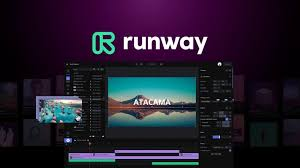
The green screen removal works without an actual green screen — you just upload a clip, and it isolates your subject. For product videos shot at home without a studio setup, this alone saves a lot of hassle.
Practical example: A freelance photographer wants to create a short promotional reel for their services. Instead of hiring a videographer for B-roll, they use Runway to generate cinematic background clips and drop their photos over them. Total time: under two hours. Total cost: free tier. Best AI Video
Pros:
- Text-to-video and image-to-video both work well
- Background removal without green screen
- Frequent feature updates — the tool improves noticeably every few months
- Good free tier for light use
Cons:
- Generated clips are short (currently up to 10 seconds on most plans)
- Can feel unpredictable — the same prompt gives different results each time
- Paid plans get expensive quickly if you need high volume
- Not ideal for talking-head or interview-style videos
Best for: Content creators, marketers, and designers who need creative visuals fast.
2. Synthesia — Best for Talking-Head Videos Without a Camera
Synthesia solves a specific problem really well: creating professional-looking video presentations without ever turning on a camera. You type your script, pick an avatar, choose a background, and the tool produces a finished video of a person delivering your content.
This is especially useful for corporate training videos, product demos, and explainer content where you need a human presence but don’t have the time or budget for a full video shoot. Best AI Video
What it does well:
Synthesia offers over 230 avatars covering different ages, ethnicities, and styles. You can create a custom avatar using your own likeness if you’re on a higher plan. The lip-sync quality is noticeably better than most competitors — it doesn’t have the uncanny valley feel that some similar tools produce.
You can also add slides, screen recordings, and music directly within the platform, which means the whole video comes together in one place.
Practical example: An HR manager at a mid-size company needs to create onboarding videos for new employees across three different departments. Instead of booking a conference room and filming the same presentation three times, they create three versions in Synthesia in an afternoon — each with slightly different scripts and the same professional avatar.
Pros:
- No camera, no studio, no filming required
- Supports over 130 languages with realistic voiceovers
- Slides and screen recordings integrate smoothly
- Clean, professional output right out of the box
Cons:
- Avatars, while good, still look slightly artificial on close inspection
- Customization is limited unless you’re on expensive plans
- Not suitable for entertainment or highly creative content
- Per-video costs add up if you’re producing at scale
Best for: Corporate teams, educators, and businesses that need professional video content regularly without a production crew.
3. CapCut (Pro) — Best for Social Media Video Editing
CapCut started as a mobile app for short-form video and has grown into a surprisingly capable desktop tool. In 2026, the Pro version includes several smart editing features that speed up the entire workflow — auto-captions, background removal, beat sync, and template-based editing all work well.
It’s not the most powerful editor on this list, but it’s the most accessible. If you’re creating content for TikTok, Instagram Reels, or YouTube Shorts, CapCut fits the workflow better than any other tool here.

What it does well:
The auto-caption feature is genuinely excellent. Upload a video, hit generate, and it produces accurate subtitles synced to the audio. For most English content, the accuracy is above 95%. You can edit individual words and adjust styling without touching a timeline.
The template library is massive. If you need to pump out a branded video quickly, pick a template, drop in your footage, and you’re done in under ten minutes.
Practical example: A food blogger records a 60-second recipe video on their phone. They import it into CapCut, add auto-captions, apply a warm color preset, sync the cuts to a background track, and export it in 9:16 format for Instagram — all in about 20 minutes.
Pros:
- Extremely easy to learn, even for beginners
- Auto-captions are fast and accurate
- Huge template library for social formats
- Free version is genuinely useful (not just a teaser)
- Works on both mobile and desktop
Cons:
- Not suitable for long-form or cinematic video projects
- Some features push you toward the Pro subscription
- Less control over advanced color grading or audio mixing
- Export watermark on the free plan
Best for: Social media creators, small business owners, and anyone making short-form content regularly.
4. Descript — Best for Editing Video Like a Document
Descript takes a completely different approach to video editing. Instead of working on a timeline, you edit the transcript. Delete a sentence from the text, and it disappears from the video. Want to cut out all the “ums” and “uhs”? There’s a one-click option for that.
For people who find traditional video editing intimidating, this is a game-changer.

What it does well:
The Overdub feature lets you correct spoken mistakes by typing the right words — Descript then generates audio in your voice to fill in the gap. It’s not perfect, but for fixing a mispronounced word or adding a clarifying sentence, it works surprisingly well.
The Filler Word Removal scans your entire recording and marks every “um,” “like,” and “you know.” You can remove them all in seconds.
Practical example: A podcast host records a 45-minute interview and needs to turn it into a 20-minute highlight reel. In Descript, they read through the transcript, highlight the sections they want to keep, and delete the rest. What would take hours in a traditional editor takes about 30 minutes.
Pros:
- Editing by transcript is genuinely faster for talk-heavy content
- Filler word removal saves real time
- Overdub voice correction is a unique and useful feature
- Works well for podcasts as well as video
Cons:
- Transcript editing doesn’t suit highly visual or music-heavy content
- Overdub voice quality varies — works better for some voices than others
- Can feel slow on older computers with long video files
- Pricing has increased; the free plan is more limited now
Best for: Podcasters, YouTubers, educators, and anyone whose videos are primarily talk-based.
5. Pictory — Best for Turning Written Content Into Video
If you have blog posts, articles, or scripts sitting around, Pictory turns them into videos automatically. Paste your text, and it pulls relevant stock footage, adds captions, and assembles a finished video in minutes.
It’s not the most creative tool — you’re working within the limits of stock footage libraries — but for content repurposing at scale, nothing else comes close.
What it does well:
The article-to-video feature is the main attraction. Paste a URL or text, and Pictory breaks it into scenes, matches each section with relevant clips, and adds a voiceover. You can swap out clips you don’t like and adjust the pacing manually.
The auto-highlight feature scans long videos and extracts the most engaging short clips — useful for creating social media snippets from longer content.
Practical example: A marketing agency has 50 blog posts on a client’s website. Instead of producing 50 videos from scratch, they run each post through Pictory and get a polished 60–90 second video for each one. A week’s worth of social content gets produced in a day.
Pros:
- Extremely fast for repurposing text-based content
- Large stock footage library built in
- Auto-highlight clips are useful for social repurposing
- Good for teams producing content at volume
Cons:
- Limited creativity — output can look generic
- Stock footage doesn’t always match the content perfectly
- Not suitable if you need custom or original visuals
- Voiceover quality varies by selected voice
Best for: Bloggers, content marketers, and agencies repurposing written content into video.
6. HeyGen — Best for Multilingual Video Content
HeyGen sits in a similar space to Synthesia but has carved out a strong reputation for one specific feature: video translation with lip-sync. Upload a video in English, and HeyGen can produce a version in Spanish, Hindi, Mandarin, or dozens of other languages — with the speaker’s lips resynced to match.
For global brands and creators expanding into new markets, this is a significant time-saver.
What it does well:
The avatar quality is on par with Synthesia, and the translation feature is the best in this category right now. The lip-sync on translated videos isn’t flawless, but it’s convincing enough for professional use in most contexts.
Practical example: A SaaS company based in the US wants to launch its product in Latin America. Instead of re-recording their entire demo video library in Spanish, they run each video through HeyGen’s translation feature and have Spanish versions ready in a few hours.
Pros:
- Best-in-class video translation with lip-sync
- Good avatar variety and quality
- Supports a wide range of languages
- Useful for international marketing without re-filming
Cons:
- Lip-sync on translations is good, but not perfect
- Pricing is on the higher side
- The free tier is very limited
- Less useful if you only work in one language
Best for: Global brands, international educators, and creators expanding into multilingual markets.
Quick Comparison Table
| Tool | Best For | Free Plan | Starting Price | Ease of Use |
|---|---|---|---|---|
| Runway ML | Creative video generation | Yes | ~$15/month | Medium |
| Synthesia | Talking head without a camera | Limited | ~$29/month | Easy |
| CapCut Pro | Social media editing | Yes | ~$10/month | Very Easy |
| Descript | Transcript-based editing | Yes | ~$24/month | Easy |
| Pictory | Text-to-video repurposing | Yes | ~$23/month | Easy |
| HeyGen | Multilingual video creation | Limited | ~$29/month | Easy |
How to Pick the Right Tool for You
Here’s a simple way to narrow it down:
- You’re a solo creator making YouTube videos → Start with Descript or CapCut
- You run a business and need training/onboarding videos → Look at Synthesia
- You want to repurpose blog content → Pictory is built for this
- You need videos in multiple languages → HeyGen is the strongest option
- You want to experiment with creative or generative video → Runway ML
- You’re primarily making short clips for social media → CapCut, without question
Most of these tools offer free trials. Spend 30 minutes with two or three of them before committing to a subscription — what feels intuitive to one person can feel clunky to another.
FAQs
Are these tools suitable for complete beginners?
Yes, most of them are designed for people without a video editing background. CapCut and Pictory are the easiest starting points. Runway ML has a steeper learning curve but offers beginner-friendly tutorials on its site.
Can I use these tools to make money?
Absolutely. Many creators and agencies use these tools to produce client work, YouTube content, and social media videos professionally. Just check each platform’s terms of service regarding commercial use — most allow it, but some have restrictions on avatar-based videos.
Do any of these work on mobile?
CapCut has the best mobile experience by far. Runway ML has a mobile app, but it’s more limited than the desktop version. Most others are desktop or browser-based.
What’s the best free option on this list?
CapCut’s free plan is the most genuinely useful. Descript and Pictory also offer free tiers with enough features to evaluate properly. Runway ML’s free plan is more restrictive but still lets you test the core features.
Are the videos generated by these tools royalty-free?
Generally, yes — content you create using these platforms belongs to you, and the stock footage libraries used by tools like Pictory are licensed for commercial use. Always read the terms of your specific plan to confirm.
Is it worth paying for a premium plan?
For anyone producing video content regularly — even once a week — the time savings easily justify the cost of a paid plan. If you’re just experimenting, stick with free tiers until you know which tool fits your workflow.
Can these tools replace a professional video editor?
For straightforward content like explainers, social clips, and training videos — largely yes. For cinematic productions, brand films, or highly creative work, they complement a professional editor rather than replace one.
Conclsion
The video tools available in 2026 are genuinely impressive — and most of them are accessible to people without any filmmaking background. Whether you need to produce a polished corporate explainer, a weekly YouTube video, or a library of social clips, there’s a tool on this list that fits.
Start with the one that matches your most immediate need, test it on a real project, and see how much time it saves you. That’s the only honest way to judge whether any tool is worth it.

